


Welcome to the ’26/’27 Pickleball Season!
We hope you all had a great time in the world of outdoor play, and we are stoked to have y’all re-joining the GMCF community! While we have lots of stuff to tell you about this fall and beyond, our immediate need, and the intention of this newsletter is to tell everyone about a new software platform we are adopting to manage our Open Play. So while software may not be the most exciting thing, please read on as this will be an important shift for us all to make together!
Goodbye Player Lineup, Hello PB360!
For the last 5 seasons we have been using the inherited and familiar 3rd party software, Player Lineup, to manage our Open Play games. While functional, it was never a very robust system and ended it’s utility at just the Open Play schedule. After much research we have chosen to transition away from Player Lineup to a platform that is 100% designed for the management of Pickleball Clubs. It is called PB360 and starting on October 1st it will be how we do our Open Play at GMCF.
The initial implementation of PB360 will be purely to replace what Player Lineup already does. This may seem like an inconvenience to gain not much additional function, but it’s all the other stuff that this software does that makes this an exciting proposition for us at GMCF, and for you as players. From tournament registrations to new Open Play formats to automated DUPR days to league management, PB360 has a lot of features we look forward to exploring over the year to come.
But first, the pain of transition must occur…and fast! Many of you have noticed that the Player Lineup schedule is blank starting on October 1st, so our goal is to get as many of you as possible onto the new system before Thursday so there is no interruption in your passion for pickleball! So without further ado…
Getting PB360 Onto your phone and/or computer
PB360 runs as an app in both your browser and on your phone, so there is a registration/installation process that everyone must go through to begin scheduling their Open Play games. The installation is pretty similar whether on a browser or on an Android phone or an iPhone, so we will cover just a single workflow (browser) and point out any differences along the way.
NOTE: BEFORE YOU START!
One thing that makes PB360 attractive for GMCF is that it can establish profile connections with our membership software, Club Automation, so you will need to know your login information for Club Automation (the credentials you use to login to the GMCF app or Member Portal). If you do not know this information we recommend calling or stopping by our front desk so that they can help you acquire that information prior to following these steps.
Once you have that info, proceed to Step 1…
STEP 1
Open your browser (Chrome, Safari, etc. on your desktop, laptop or phone) and type in: “app.pb360.me“
You should see something similar to the following image and you choose “Log in”
NOTE: APP INSTALLATION PROMPT – Through the following process you will likely be prompted to install the PB360 app, either in your browser or on your phone (it happens differently on the browser vs. iPhone vs. Android phone). When you are prompted, we recommend that you follow the indicated steps. The software will run without installing the app, but it will function easier (access to an icon on the phone, automatic login, etc.) if you do have it installed. The app can not be found on your app store on your phone, so following this step is the only way to get it installed). Installing the app should not interfere with this process…


STEP 2
Next you will choose to sign in using your Club Automation credentials…(not using the email and password fields below that button)

STEP 3
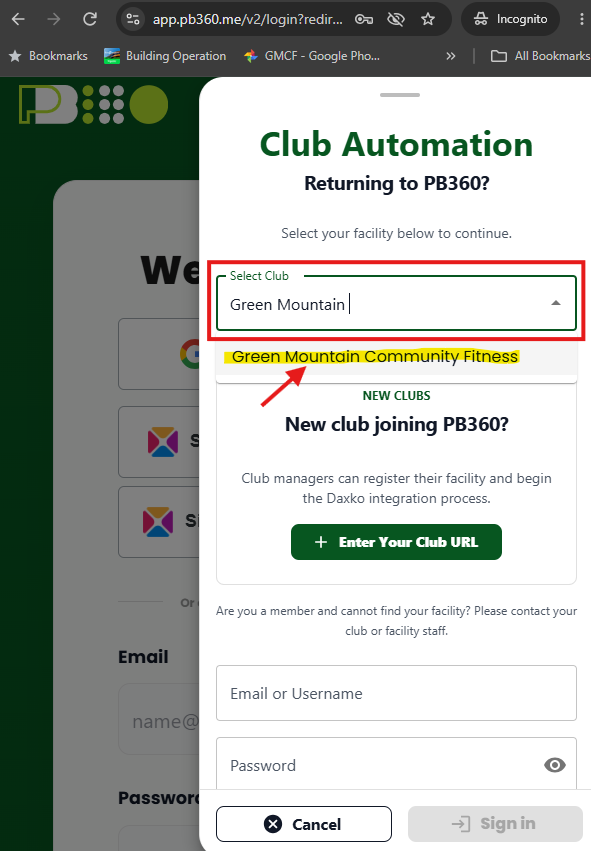
Then PB360 will want to connect you with your home club – GMCF. Start to type “Green Mountain Community Fitness” and it should find us (this can take a moment)…
STEP 4
Once you have chosen your club you can go to the bottom of the screen to enter your club automation email or username (sometimes your username is NOT your email so use your username in that case) as well as you password. It’s helpful to choose “Remember my club.” Then choose “Sign in”…

STEP 5
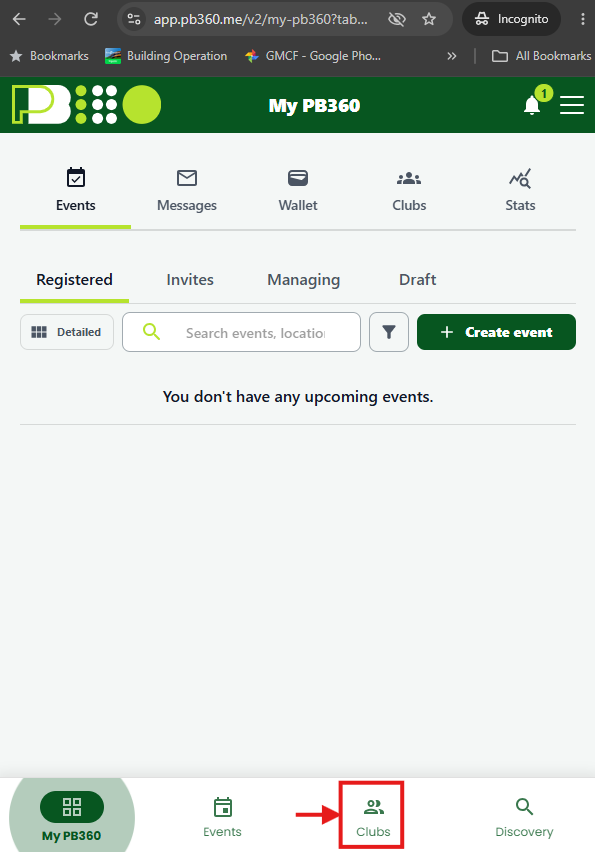
Once you are logged in you will choose “Clubs” to further establish yourself as a member of our GMCF club, which includes getting a free “membership” within PB360…
STEP 6
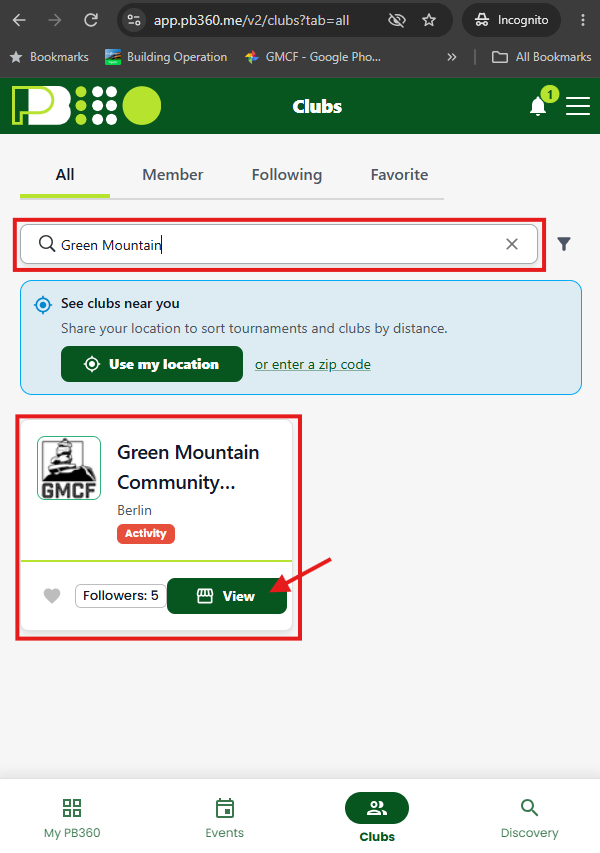
Again, start typing “Green Mountain…” and it should find GMCF as an option. Once it does you can select “View”…
STEP 7
Here you will establish a PB360 membership at GMCF by choosing “Become Member”…

STEP 8
Then there will be a single option: “GMCF Pickleball” with a zero dollar charge. Select that option…
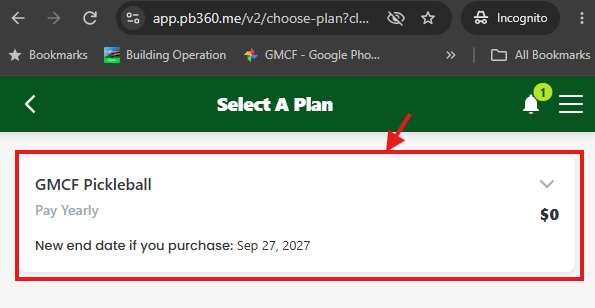
STEP 9
And confirm that is the plan you want…
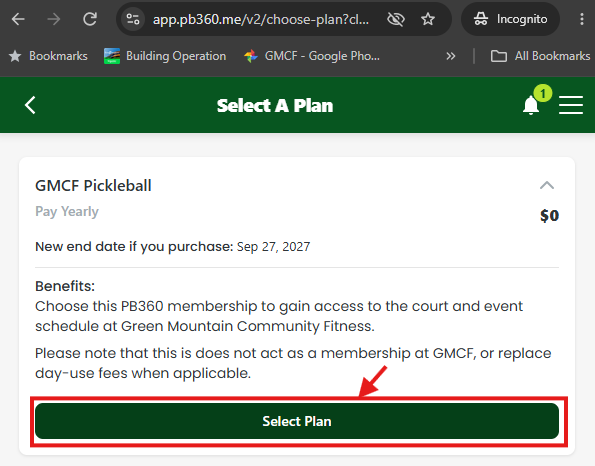
STEP 10
And then confirm how much you are paying (even though it’s free!)…

STEP 11
And if all that went well you are done with PB360 registration! If you select the “Events” button you will be taken to our Open Play schedule, and be able to register yourself for a game, and then show up for that game, and keep having a blast playing pickleball!!!

IF YOU GET STUCK
If you have problems with this process we are prepared to help! The best way to support you is in-person, with your phone in hand. Linda and Nick are expecting to provide a lot of assistance over the next few days to get you all moved over to this new environment, so don’t be afraid to pull them aside and ask. Also don’t let technology get in the way of your game – we will have paper copies of the schedule posted at the courts so you know when your group is meeting and you can still come and play! We will be sending out additional information about the schedule and other related logistics, but right now we are focused on tackling this first, important step of getting you all up and running on PB360.
THANK YOU
We know that change can be challenging, so we thank you all in advance for your patience as we navigate the process. This will be a temporary hassle, but a long lasting move towards a better platform for having fun on the GMCF courts.